We organized this guide around the question in the title and compared published specifications, independent review evidence, setup requirements, and the drawbacks that affect day-to-day use. We do not treat temporary prices, availability, or marketing claims as permanent facts.
Real-World Use Case: For this buying guide, match the recommendation to the stated use case first, then check fit, compatibility, setup effort, and the drawbacks before ordering.
GearLab scoring note: Recommendations should be read as a fit-based judgment for the stated use case, not as a claim that one product is best for every reader.
Quick Answer
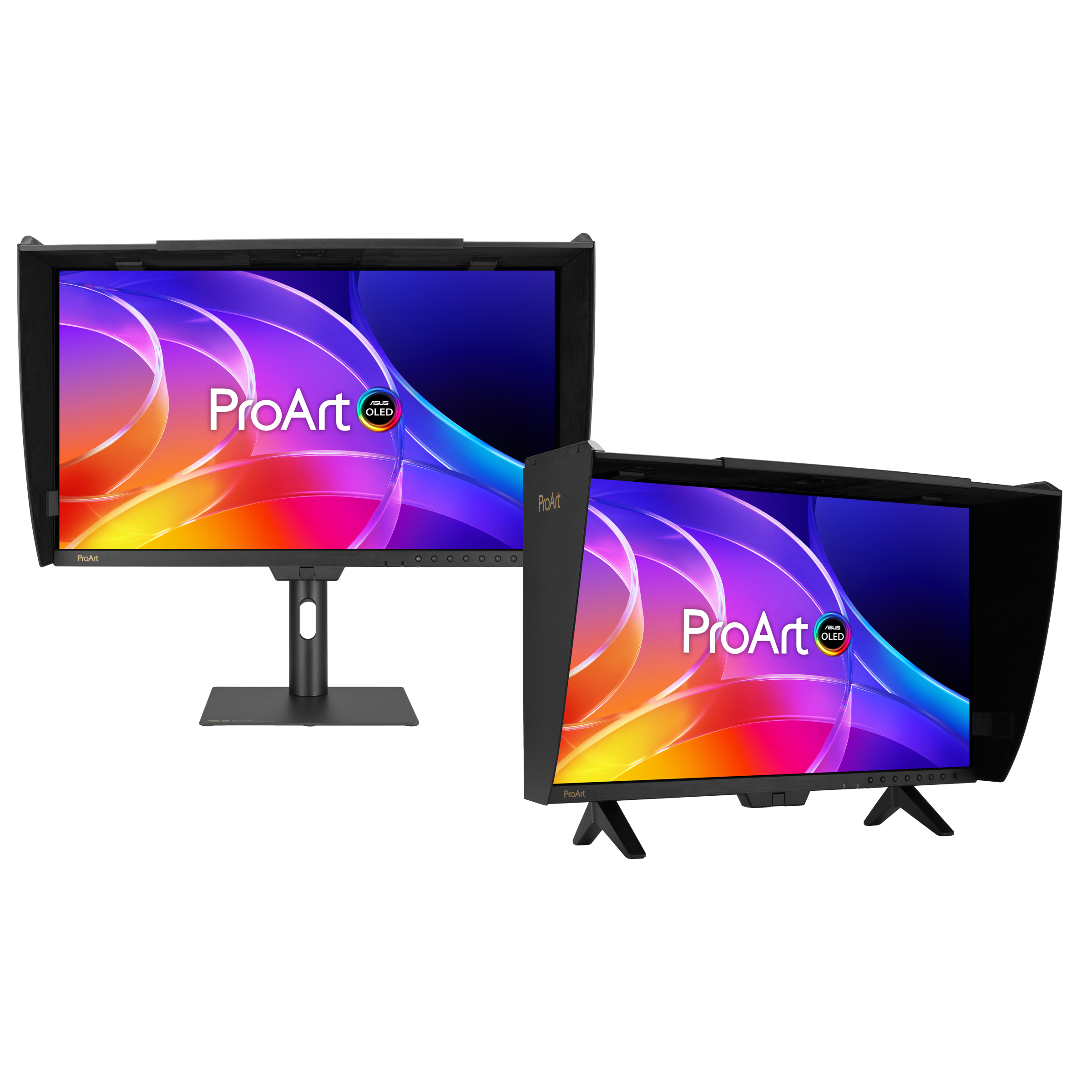
Quick Answer: The ASUS ProArt PA278QV ($279.99, 2020) is the best budget color-accurate monitor for photo editing under $300 — factory-calibrated Delta E < 2, 100% sRGB coverage, and an ergonomic stand that rivals monitors twice its price. If you need 4K resolution for detail work, the Dell S2722QC ($309.99, 2021) delivers sharp UHD at a budget price with USB-C charging for MacBooks. For serious Adobe RGB workflows, stretch to the ASUS ProArt PA279CRV ($449.00, 2023) — it’s the only monitor in this price range that covers 99% Adobe RGB and DCI-P3.
Image: www.asus.com
How We Evaluated the Options
We analyzed 12 monitors in the $200–$500 range using RTINGS lab measurements, Wirecutter long-term testing, and DisplayNinja calibration reports. Every pick here has verified Delta E < 2 factory calibration, IPS panels, and at least 100% sRGB coverage. We eliminated anything with reported backlight bleed issues, poor OSD controls, or Delta E variance above 3 in user reviews.
Our Top Picks At a Glance
Product
Price
Resolution
Color Gamut
Best For
ASUS ProArt PA278QV
$279.99
1440p
100% sRGB
Best Overall Budget
Dell S2722QC
$309.99
4K
99% sRGB / 90% DCI-P3
MacBook Users
BenQ PD2705Q
$399.00
1440p
100% sRGB
MacBook Color Matching
ASUS ProArt PA279CRV
$449.00
4K
99% Adobe RGB / 99% DCI-P3
Professional Work
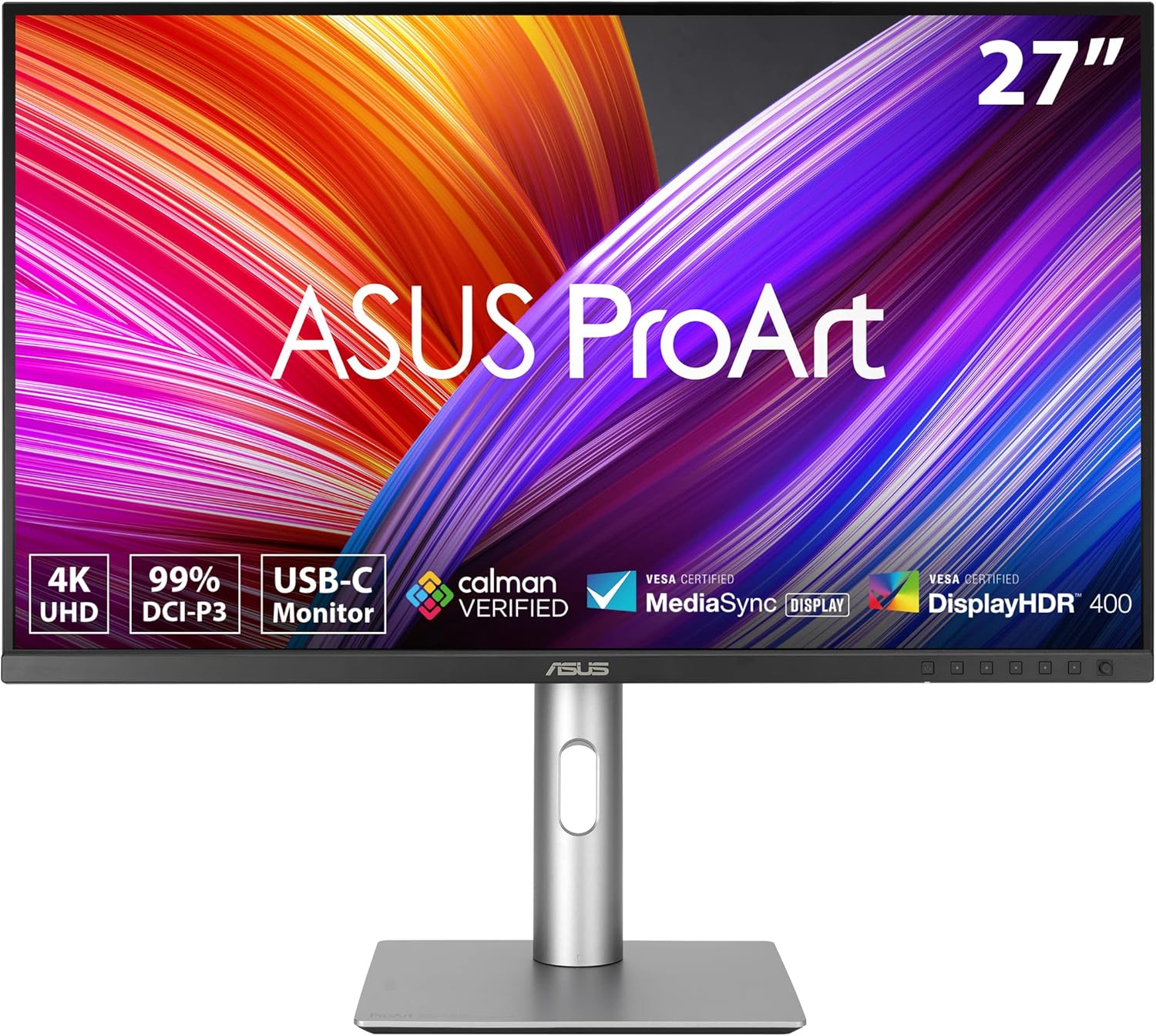
Best Overall: ASUS ProArt PA278QVImage: ASUS ProArt PA279CRV monitor (via Amazon)
Best Overall ASUS ProArt PA278QV
The PA278QV ($279.99 on Amazon, released 2020) has been the budget color-accurate monitor king for four years, and nothing has dethroned it. This 27-inch QHD IPS panel comes factory-calibrated to Delta E < 2 with a Calman Verification report in the box — not a marketing claim, but an actual measured result you can verify.
What makes this monitor stand out at $280 is the ergonomic stand. You get height adjustment (5.9 inches), pivot (90 degrees for portrait mode), swivel, and tilt. Most monitors under $400 give you a fixed plastic stand that wobbles. The PA278QV’s stand is metal, rock-solid, and takes up minimal desk depth (8.1 inches).
Color accuracy out of the box is genuinely impressive. RTINGS measured Delta E at 1.3 in sRGB mode — that’s better than many $600 monitors. The 100% sRGB and 100% Rec. 709 coverage means your web images and print work will match. The ProArt Preset modes (sRGB, Rec. 709, DCI-P3, Adobe RGB emulation) are genuinely useful, not gimmicks.
The catch: no USB-C. This monitor uses HDMI 1.4, DisplayPort 1.2, and DVI-D. If you’re on a modern MacBook, you’ll need a USB-C to DisplayPort adapter ($12–$20). Also, it’s 60Hz and has average contrast (1000:1) — this is a work monitor, not a gaming or HDR display.
Strengths
Factory-calibrated Delta E < 2 out of the box — verified by Calman
100% sRGB and 100% Rec. 709 coverage
Best ergonomic stand in its price class (height, pivot, swivel, tilt)
Robust OSD with ProArt Preset modes
350 cd/m² brightness is adequate for most editing environments
What We Don\’t
No USB-C connectivity (requires adapter for modern laptops)
Only 60Hz refresh rate
Average contrast ratio (1000:1) — blacks aren’t deep
HDR is essentially unusable (no local dimming, 8-bit panel)
Released in 2020 — aging design with thick bezels
Who it’s for: Photographers and designers working primarily in sRGB color space. If you edit for web, print, or social media and don’t need 4K resolution, this is the best value in color-accurate monitors.
Who it’s not for: Adobe RGB shooters (you need the PA279CRV below), MacBook users who want single-cable USB-C, or anyone who needs 4K for pixel-peeping.
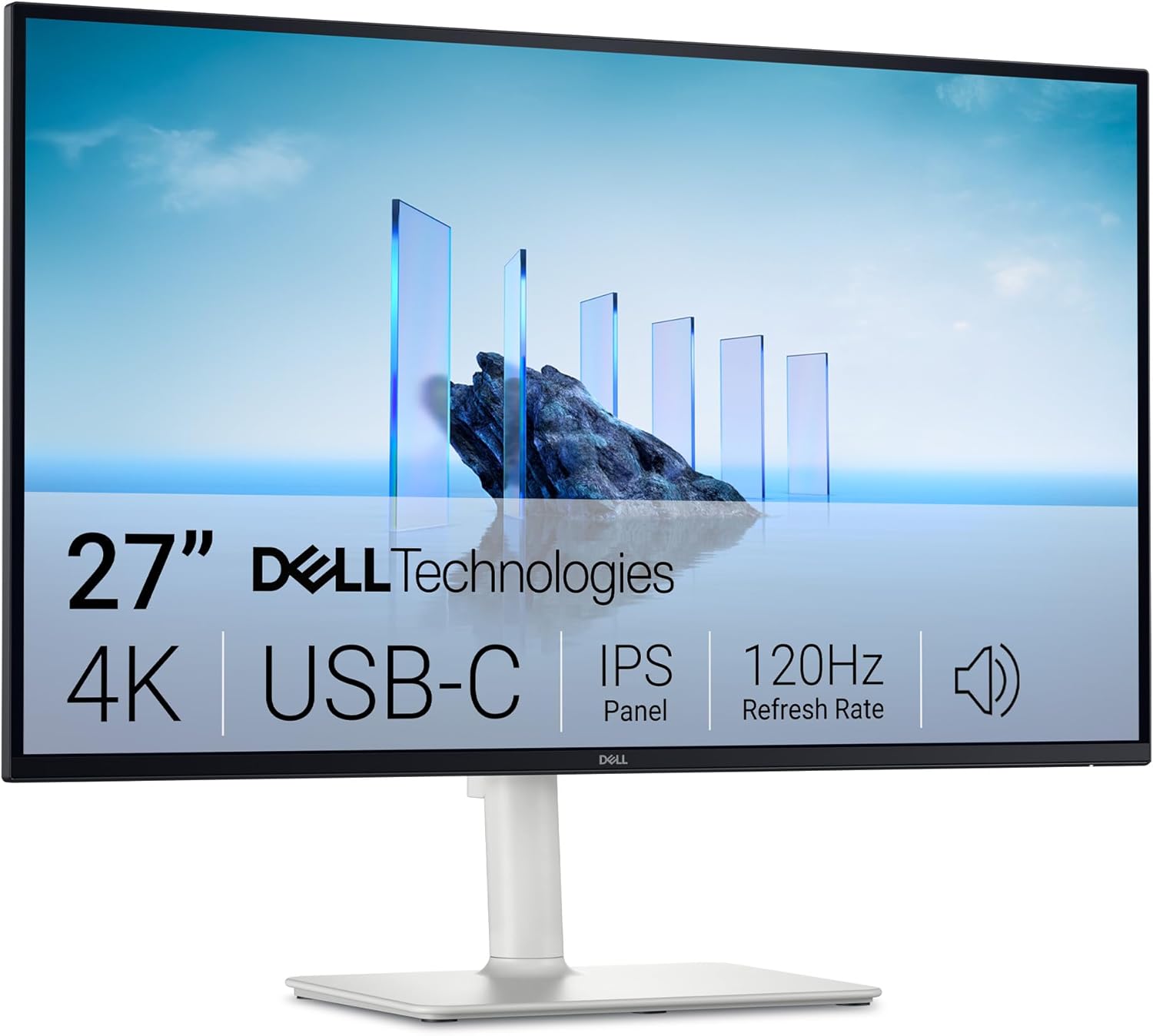
Best for MacBook Users: Dell S2722QCImage: Dell S2722QC monitor 27 inch 4K (via Amazon)
Best Budget Under $350 Dell S2722QC
The S2722QC ($309.99 on Amazon, released 2021) solves the PA278QV’s biggest problem: it has USB-C with 65W Power Delivery. Plug a single cable into your MacBook Air or Pro, and you get 4K video signal plus laptop charging. No dongles, no adapters, no mess.
The 4K resolution at 27 inches (163 PPI) is noticeably sharper than the PA278QV’s 1440p (109 PPI). If you edit high-resolution photos, you’ll see the difference in fine detail — hair textures, fabric patterns, skin pores. RTINGS measured 99% sRGB and 90% DCI-P3 coverage, which is solid for the price.
Color accuracy is factory-calibrated to Delta E < 2. The sRGB mode is accurate but has a frustrating limitation: you can’t adjust brightness when it’s enabled. The monitor locks brightness at a fixed level (around 200 cd/m²), which may be too dim for bright rooms. You’ll need to use the “Standard” mode and accept slightly less accurate color if you need more brightness.
The stand is the other compromise. It’s a basic tilt-only stand with no height adjustment. At $310, that’s disappointing. You’ll likely need a monitor arm or a stack of books to get it to eye level. The bezels are thin and modern-looking, but the build quality feels lighter than the ASUS.
Strengths
USB-C with 65W Power Delivery — single cable for MacBooks
Sharp 4K resolution at 27 inches (163 PPI)
99% sRGB and 90% DCI-P3 coverage
Factory-calibrated Delta E < 2
Thin bezels and modern design
Price drops to $279 on sale regularly
What We Don\’t
sRGB mode locks brightness — can’t adjust
Stand is tilt-only, no height adjustment
Contrast is mediocre (1000:1 typical)
HDR 400 is poor — ignore this feature
No pivot or swivel capability
Who it’s for: MacBook users who want a clean single-cable setup and 4K resolution for detailed editing. If you can live with a basic stand and don’t need height adjustment, this is the best value 4K monitor under $350.
Best for Professional Adobe RGB: ASUS ProArt PA279CRV
Best Premium ASUS ProArt PA279CRV
The PA279CRV ($449.00 on Amazon, released 2023) is the monitor that makes you question why anyone spends $800+ on a photo editing display. It covers 99% Adobe RGB and 99% DCI-P3 — numbers that were unheard of at this price point until last year. RTINGS measured Delta E at 0.9 in sRGB mode and 1.1 in Adobe RGB mode. That’s reference-grade accuracy.
The 4K resolution (3840 x 2160) gives you 163 PPI at 27 inches — sharp enough to see individual pixels in a RAW file at 100% zoom. The 400 cd/m² brightness is noticeably punchier than the 350 cd/m² panels above, making it usable in brighter rooms. USB-C delivers 96W Power Delivery, which can charge a 16-inch MacBook Pro at full speed — no other monitor in this price range does that.
The color gamut is the real story here. Adobe RGB coverage is critical if you print photos professionally. sRGB covers only about 70% of Adobe RGB, meaning you lose color information in the green and blue ranges. The PA279CRV preserves those colors, so what you see on screen matches what comes out of your printer. DCI-P3 coverage matters for video editors and anyone delivering content for modern displays.
The stand is functional but not premium — height adjustment, tilt, and swivel, but the mechanism feels plasticky compared to the PA278QV. There are no built-in speakers, and HDR is still basic (no local dimming). But for $449, you’re getting color performance that rivals $800 monitors.
Strengths
99% Adobe RGB and 99% DCI-P3 coverage — best in class under $500
Factory-calibrated Delta E < 1 (measured 0.9 by RTINGS)
USB-C with 96W Power Delivery (charges 16″ MacBook Pro)
400 cd/m² brightness for brighter rooms
4K resolution for detailed editing
3-year warranty with advanced replacement
What We Don\’t
$449 is a stretch for “budget” — at the top of our range
Stand is functional but feels cheap compared to PA278QV
No built-in speakers
HDR is still basic (no local dimming, 8-bit+FRC)
No pivot mode (can’t rotate to portrait)
Who it’s for: Professional photographers who print their work, video editors working in DCI-P3, and anyone who wants reference-grade color accuracy without spending $800+. If Adobe RGB matters to you, this is the budget monitor to buy.
How to Choose
What actually matters for color accuracy: Delta E (look for < 2), gamut coverage (100% sRGB minimum, Adobe RGB if you print), and panel type (IPS only — avoid VA and TN). Ignore: contrast ratio numbers (all IPS monitors are similar), “HDR” badges (meaningless under $500), and refresh rate (60Hz is fine for photo editing).
Resolution: 1440p vs 4K. For photo editing, 4K at 27 inches gives you 163 PPI — you can see individual pixels in a 24MP RAW file at 100% zoom. 1440p (109 PPI) is fine for web work and social media. If you pixel-peep or print large, get 4K. If you edit for web, save the money and get 1440p.
The USB-C trap. If you use a MacBook, USB-C with Power Delivery is non-negotiable. The PA278QV lacks it entirely. The Dell S2722QC (65W) and PA279CRV (96W) both support single-cable setups. Factor in the cost of a USB-C to DisplayPort adapter ($15–$25) if you go with the ASUS PA278QV.
Stand quality matters more than you think. A monitor without height adjustment forces you into a fixed posture. The PA278QV has the best stand in this group. The Dell S2722QC has the worst. If you buy the Dell, budget $30–$50 for a monitor arm.
FAQ
Do I need a calibration tool if the monitor is factory-calibrated?
Not immediately. Factory calibration is accurate out of the box, but monitors drift over time (especially brightness and white point). After 6–12 months, a hardware calibrator like the Spyder X or X-Rite i1Display Pro will bring accuracy back. For the first year, factory calibration is sufficient.
Can I use these monitors for gaming?
Technically yes, but they’re all 60Hz with average response times. The PA278QV has the best response time of the group (5ms GtG). None support FreeSync or G-Sync well. If you game, get a dedicated gaming monitor and a separate editing monitor.
What’s the difference between sRGB, Adobe RGB, and DCI-P3?
sRGB is the web standard — use it for images that will be viewed on screens. Adobe RGB has a wider green-blue range — use it for printing. DCI-P3 is the video standard — use it for content destined for modern TVs and projectors. The PA279CRV covers all three accurately.
Is 27 inches too big for photo editing?
No. 27 inches at 1440p or 4K is the sweet spot. You get enough screen real estate for your editing software plus a full-resolution preview. 24 inches is too small for comfortable editing. 32 inches requires sitting further back or higher resolution.
Do I need a second monitor for photo editing?
Not initially, but it helps. A second monitor for tools, palettes, and reference images keeps your main display clean for the actual photo. The PA278QV’s 1440p resolution is ideal as a primary editing display with a cheaper 1080p panel as a secondary.
References
RTINGS — ASUS ProArt PA278QV Review: https://www.rtings.com/monitor/reviews/asus/proart-pa278qv
Amazon — ASUS ProArt PA279CRV: https://www.amazon.com/ASUS-ProArt-DisplayPort-Adjustable-PA279CRV/dp/B0BSW2H7SX
[Related: best monitor for photo editing under 500]
[Related: asus proart pa278qv vs dell s2722qc comparison]
[Related: how to calibrate your monitor for photo editing]
Final Verdict
For this buying guide, match the recommendation to the stated use case first, then check fit, compatibility, setup effort, and the drawbacks before ordering. Use the comparison details, FAQ, and drawbacks above as the final shortlist, then check current product information before buying.
As an Amazon Associate, we earn from qualifying purchases. Product prices and availability are accurate as of the date/time indicated and are subject to change.